The Client Revenue Report shows you how much revenue each of your clients has generated over a time period. It helps you understand who your most valuable clients are and how your revenue is distributed.
Opening the report
- 1
Go to Reports → Client Revenue Report
Click Reports in the left sidebar, then click "Client Revenue Report".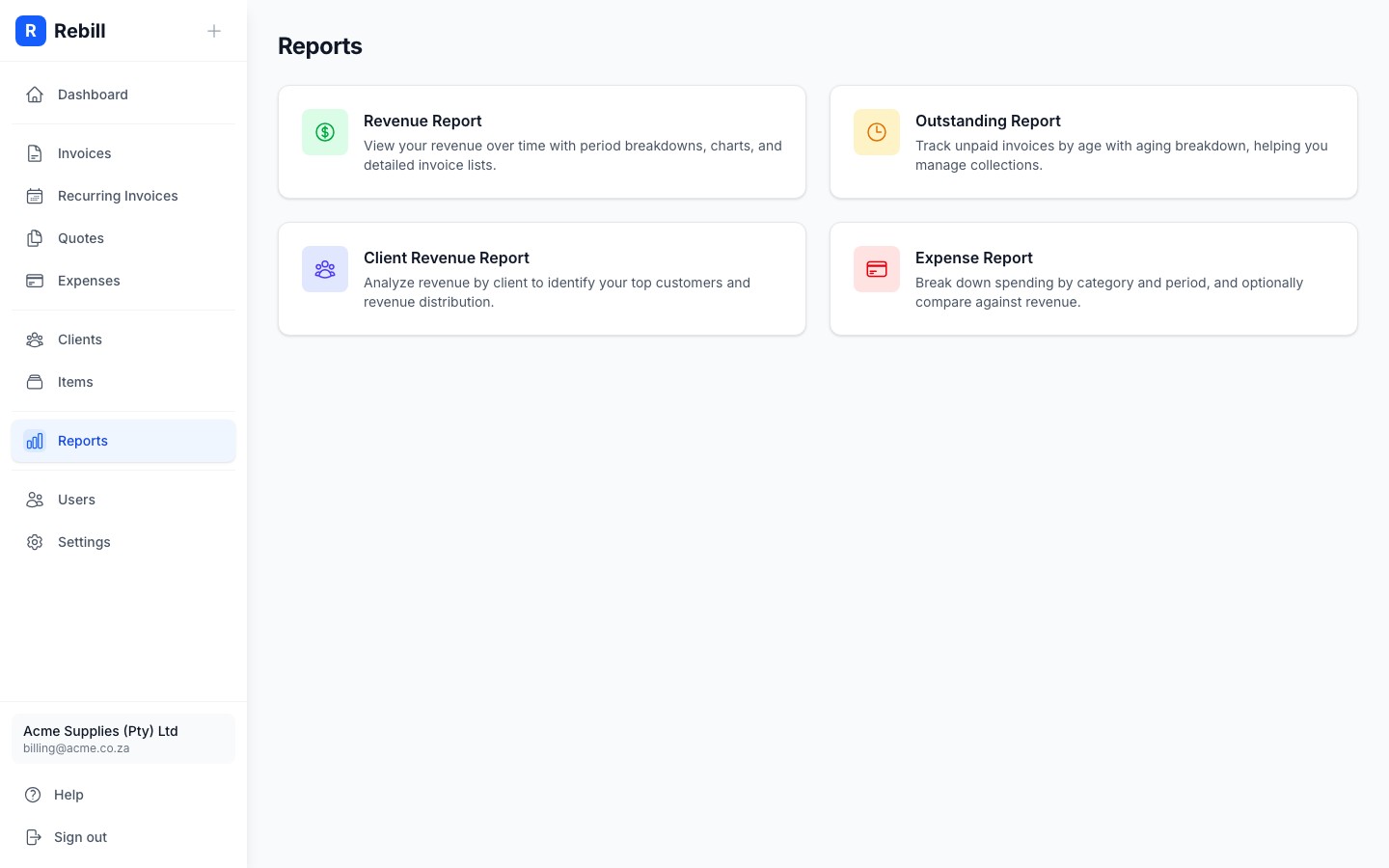
Setting the date range
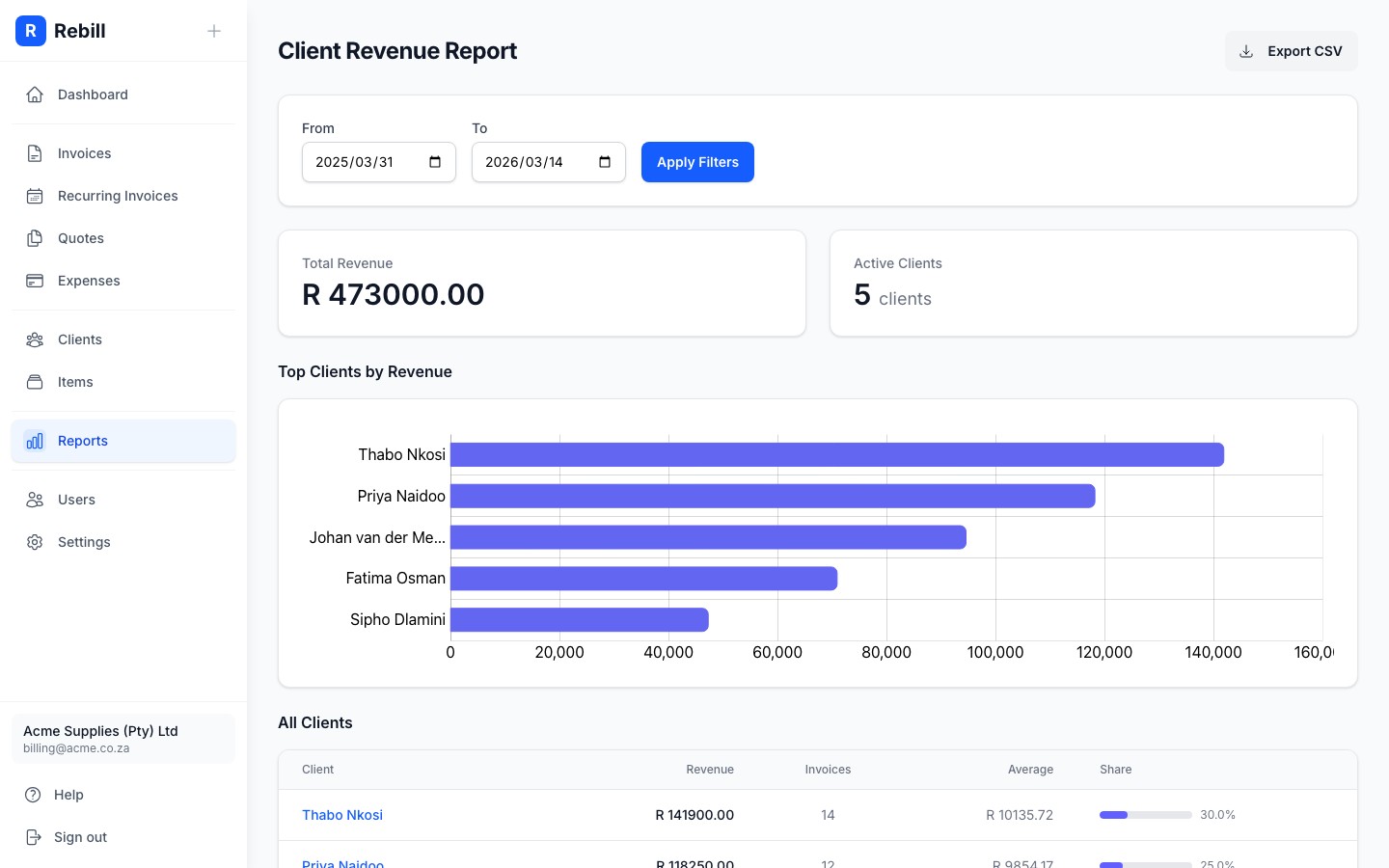
Use the Filters at the top to set a date range, then click "Apply Filters".
Reading the report
The report has three sections:
- Summary stats: Total Revenue and the number of Active Clients in the period
- Top Clients chart: a bar chart of your top 10 clients by revenue, so you can instantly see who your biggest spenders are
- All Clients table: every client listed with their total revenue, number of invoices, average invoice value, and Revenue Share (a progress bar showing what percentage of your total revenue that client represents)
Tip
Click a client's name in the table to go directly to their client page. Click "Export CSV" to download the data as a spreadsheet.