Rebill integrates with three South African payment gateways — Paystack, Yoco, and PayFast — so your clients can pay invoices online by card, instant EFT, or other methods directly from the invoice link. Once connected, a "Pay Now" button appears automatically on every client-facing invoice.
| Gateway | Card payments | Instant EFT | Webhook auto-confirm | Best for |
|---|---|---|---|---|
| Paystack | Yes (Visa, Mastercard) | Yes | Yes — required | Freelancers and consultants; also supports clients outside SA (40+ countries) |
| Yoco | Yes (Visa, Mastercard) | No | No | Businesses already using Yoco card machines; simple card-only setup |
| PayFast | Yes (Visa, Mastercard, Amex) | Yes (via Ozow) | Yes — required | eCommerce and service businesses; widest payment method support in SA |
Only one gateway can be active at a time. Connect whichever gateway your business already uses, or sign up for one above.
Paystack
- 1
Connect Paystack
In Rebill, go to Settings → Payment Integrations and click Connect next to Paystack (or Edit if already set up). Enter your Public Key and Secret Key from your Paystack dashboard, then click Save.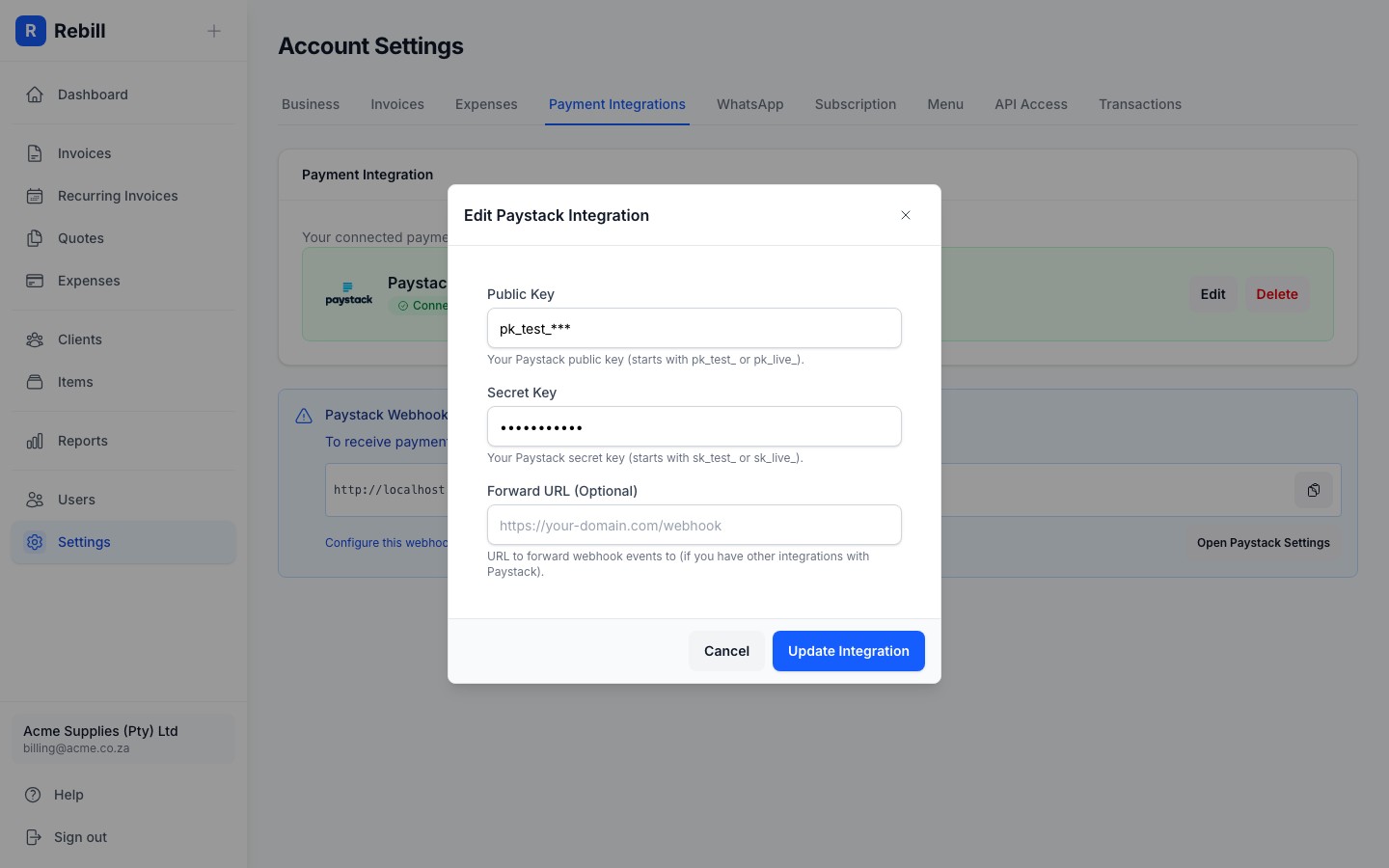
- 2
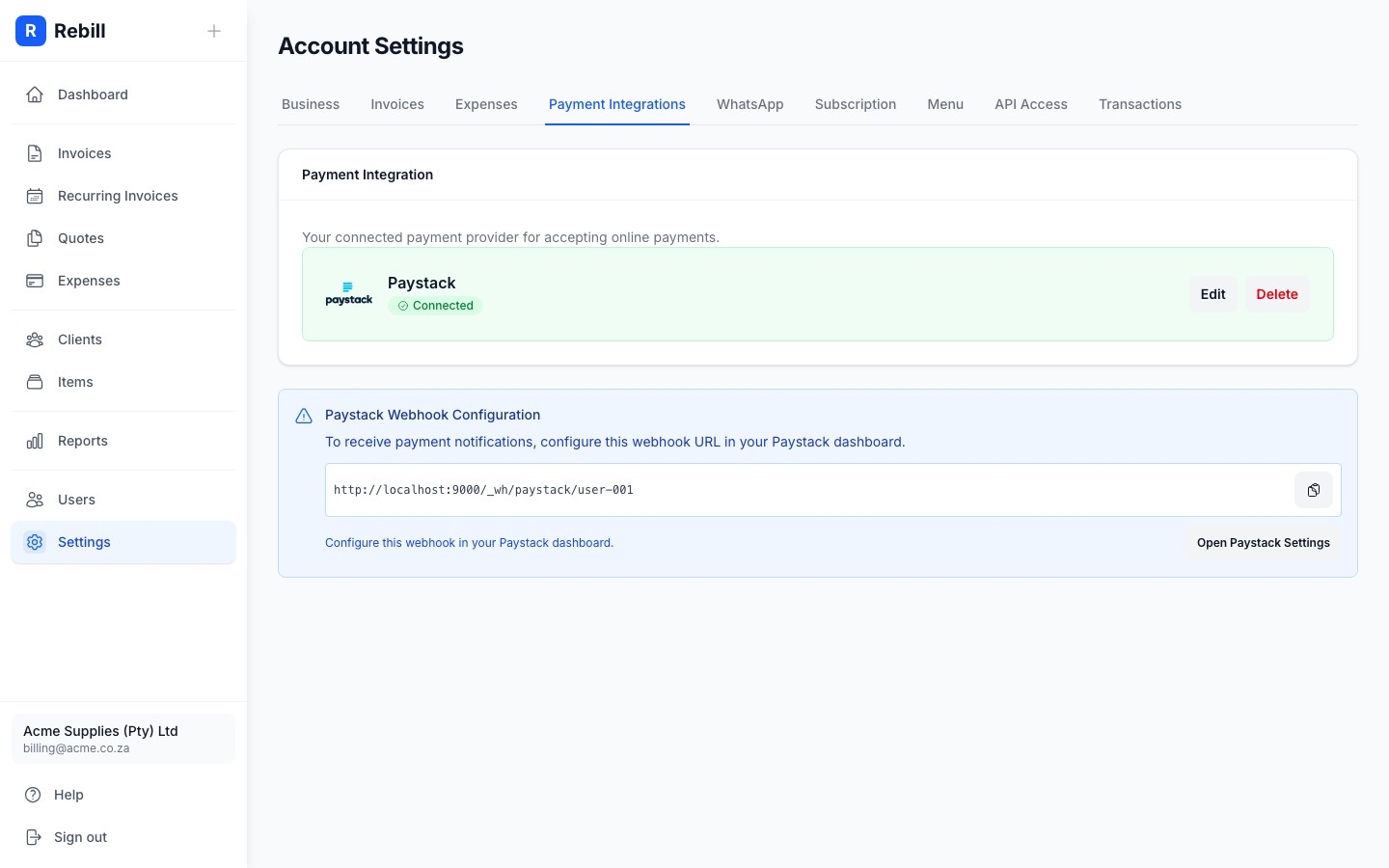
Paystack is now connected
Once saved, Paystack shows as Connected in your Payment Integrations settings. A pay button will appear automatically on all your client-facing invoices.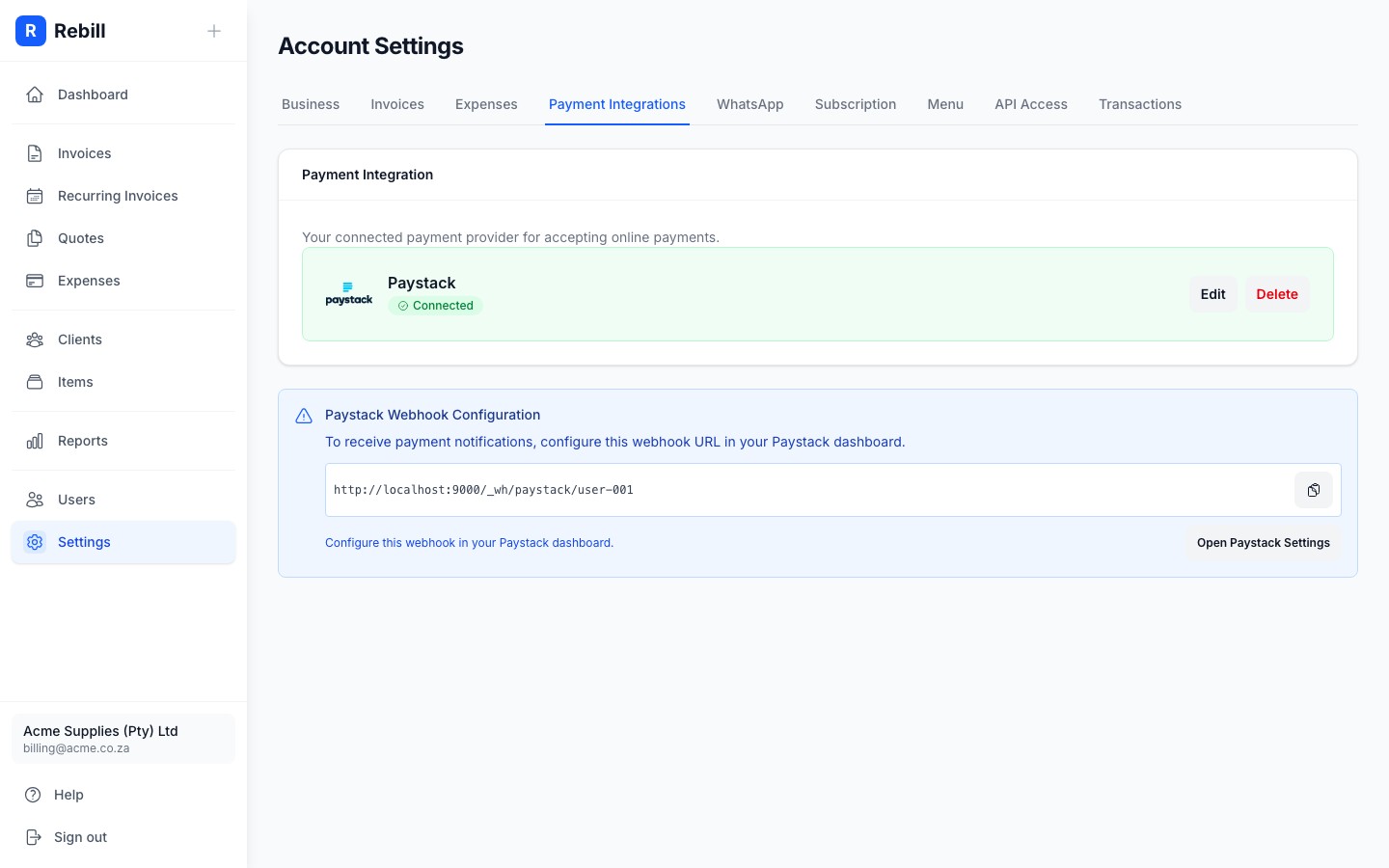
- 3
Configure the webhook
Rebill will display a webhook URL after connecting. You must copy it into your Paystack dashboard under Settings → API Keys & Webhooks. Without this, Rebill will not receive payment confirmations and invoices will not be marked as paid automatically.
Yoco
- 1
Get your Yoco public key
Log in to your Yoco account and navigate to Developers → API Keys to find your public key.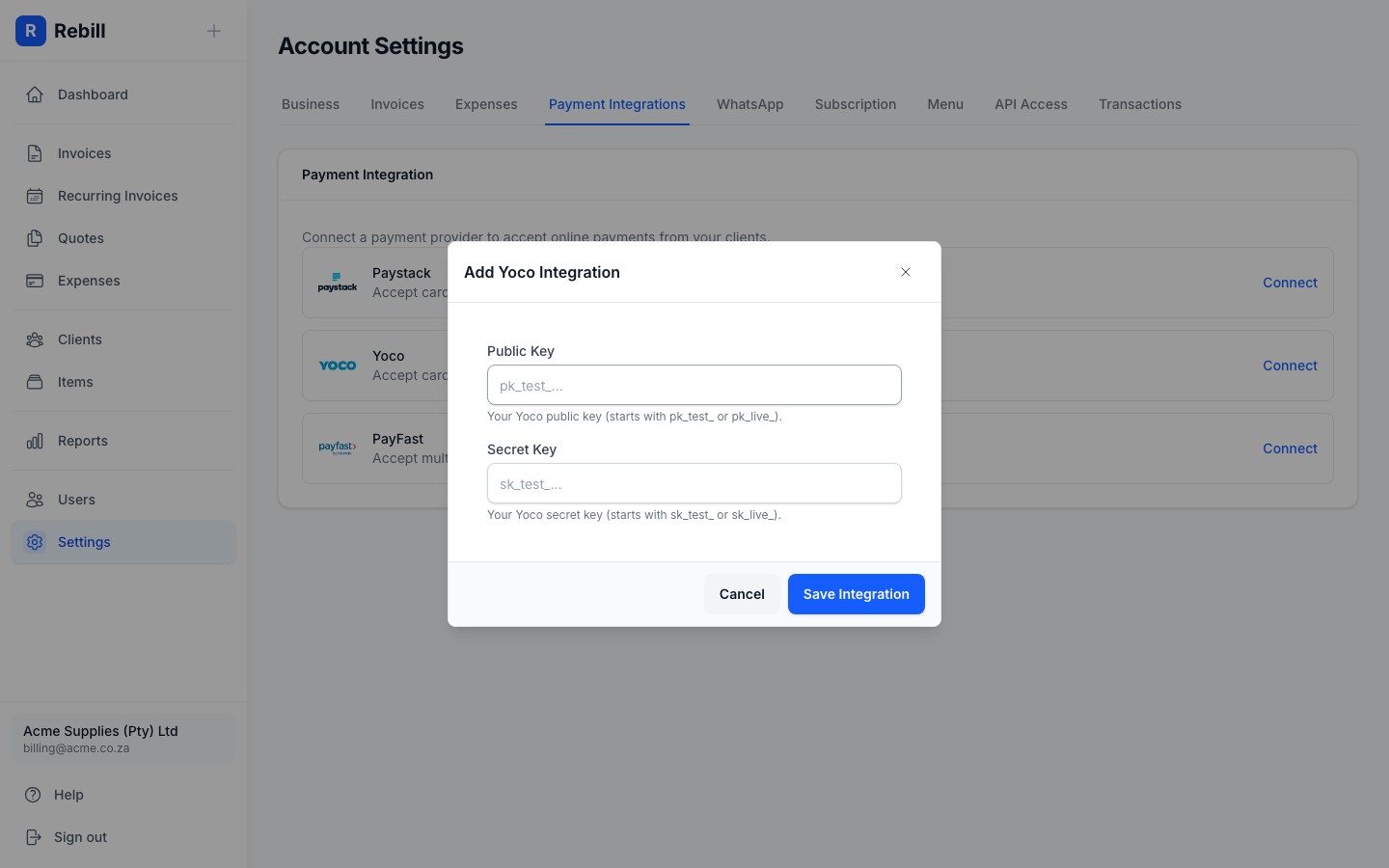
- 2
Enter and enable
Paste your Public Key into the Yoco section in Rebill's Payments settings, then click "Save Settings".
PayFast
- 1
Get your PayFast credentials
Log in to your PayFast account. Go to Settings → Integration to find your Merchant ID, Merchant Key, and Passphrase.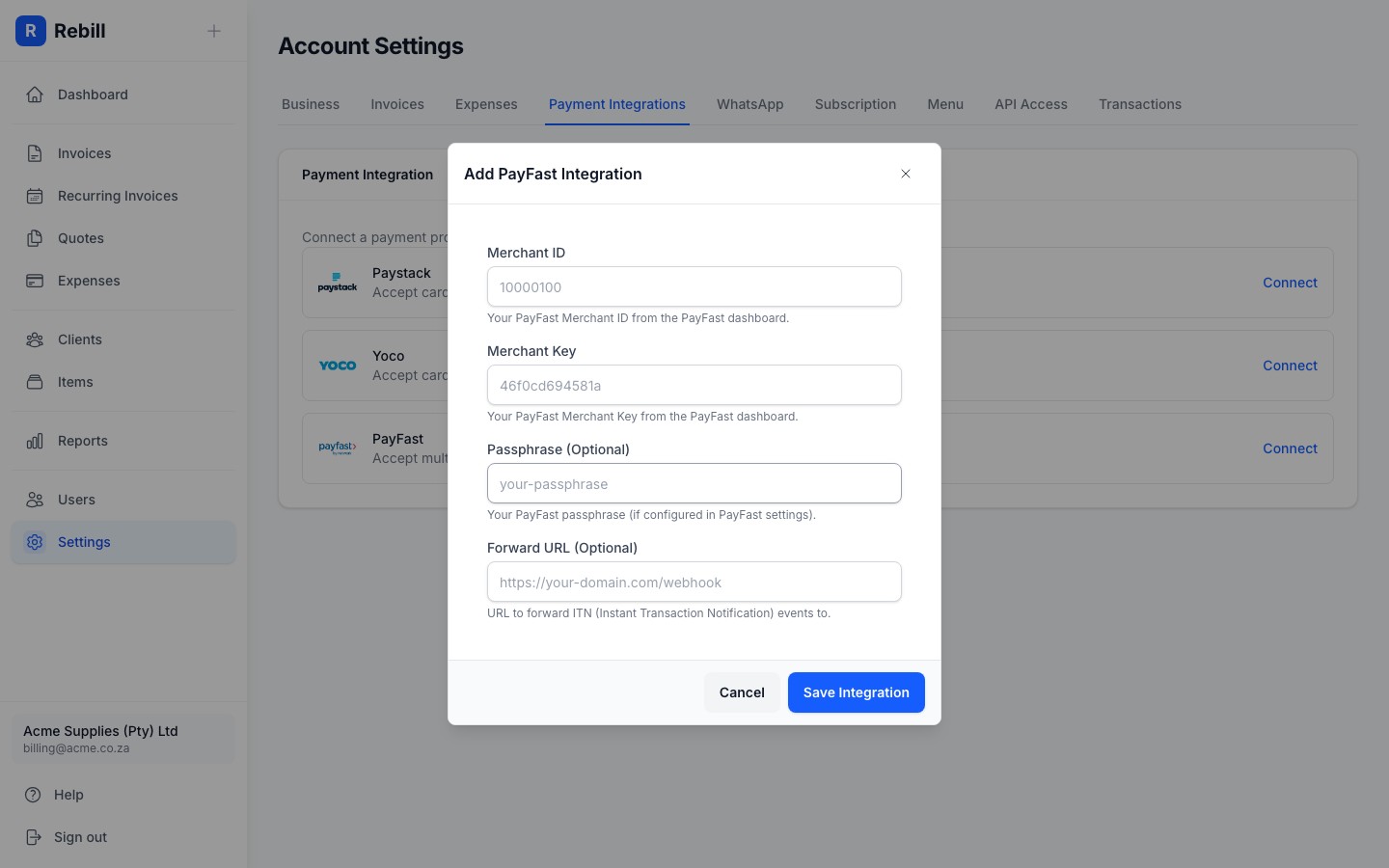
- 2
Enter and enable
Paste all three into the PayFast section in Rebill's Payments settings, then click "Save Settings".
Note
Only one payment gateway can be active at a time. Connecting a new gateway will replace your current one.