Log a business expense from the Expenses section. You can edit or delete expenses at any time.
- 1
Go to Expenses
Click Expenses in the left sidebar. You will see a list of all your logged expenses.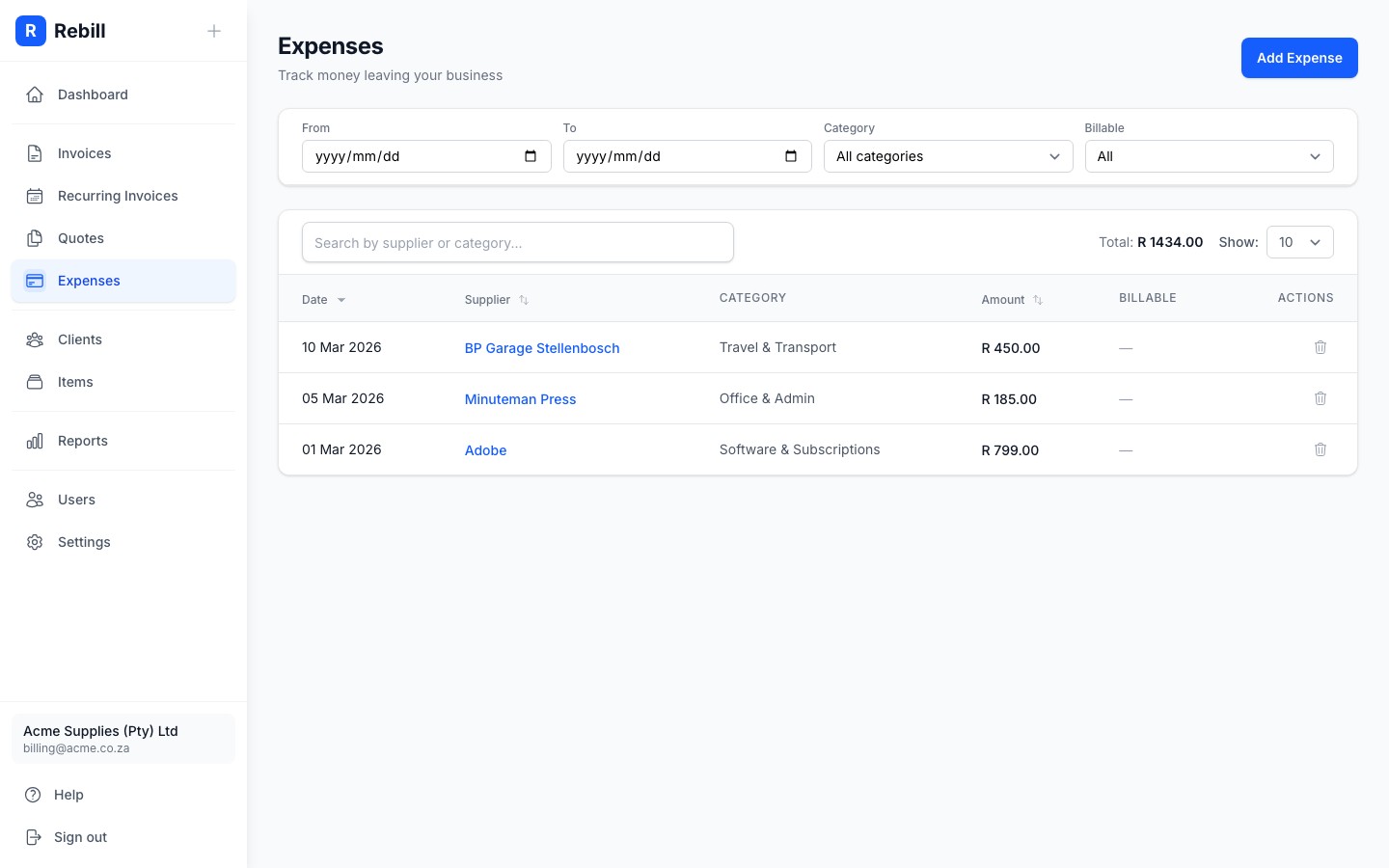
- 2
Click "Add Expense"
Click the "Add Expense" button at the top right of the page.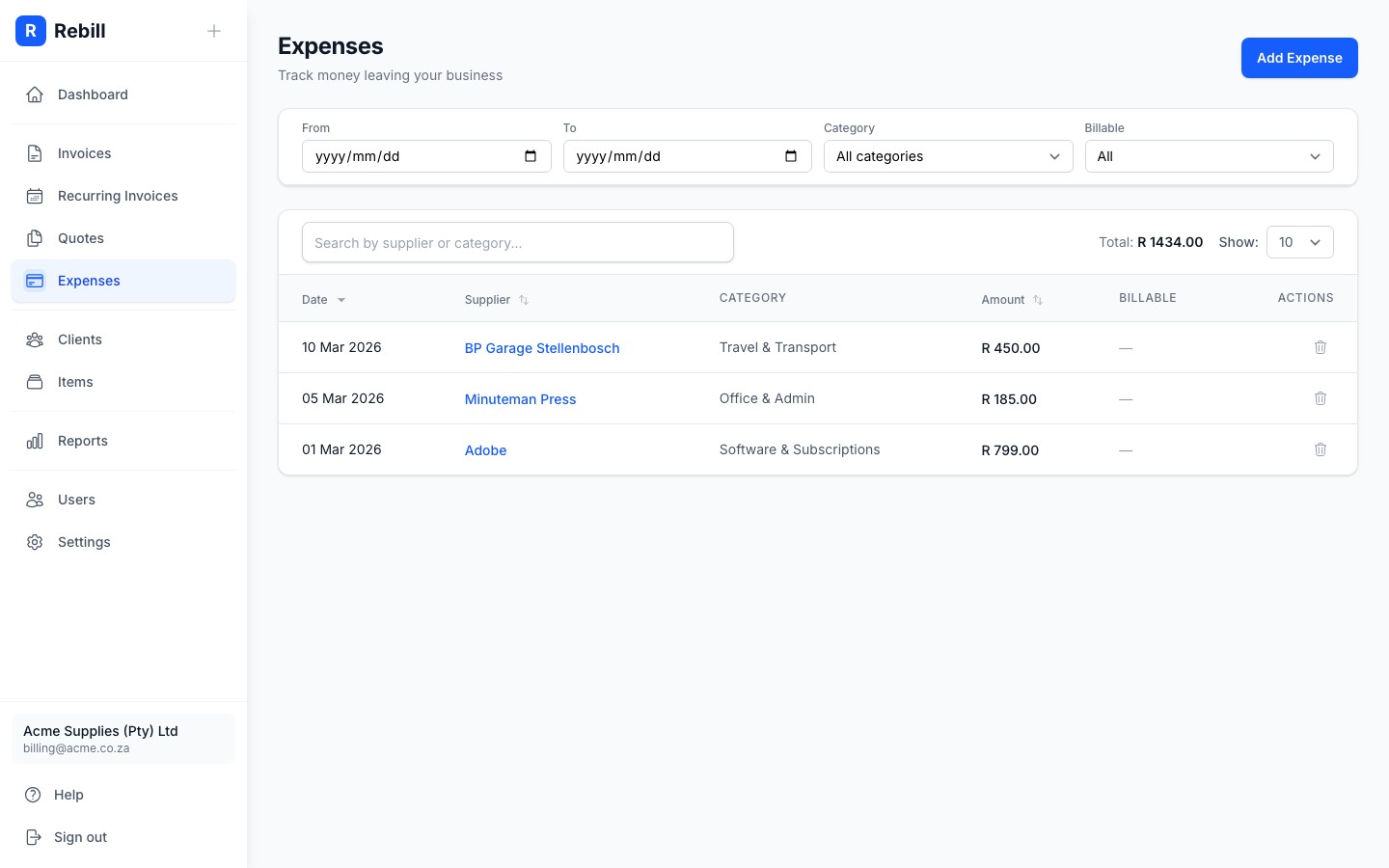
- 3
Fill in the expense details
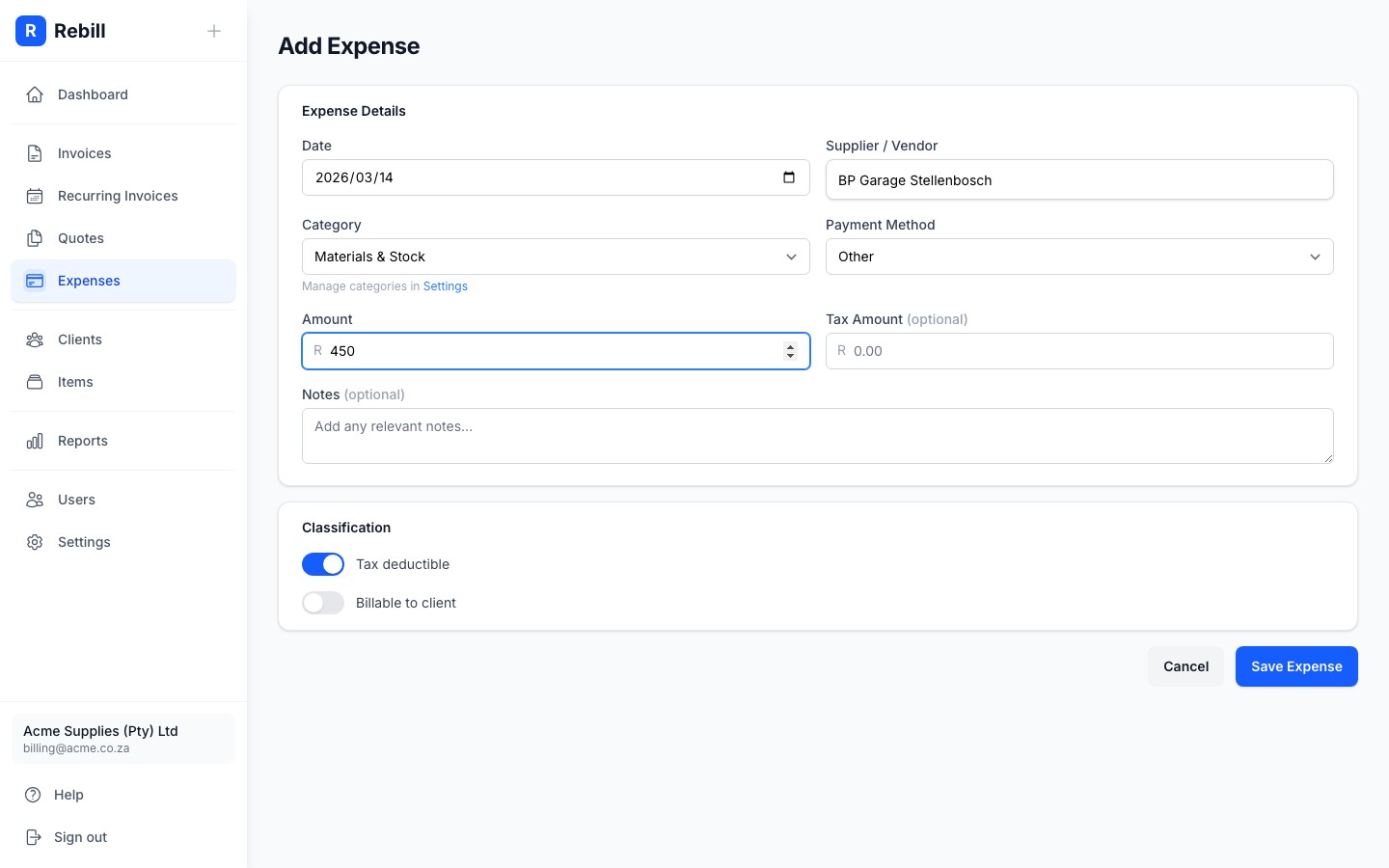
Fill in the required fields:- Date — the date the expense was incurred
- Supplier / Vendor — who you paid
- Category — choose from your categories
- Payment Method — Cash, Card, Bank Transfer, or Other
- Amount — the total amount paid
- 4
Set classification
Two toggles let you classify the expense:- Tax deductible — on by default. Turn off if the expense is not deductible.
- Billable to client — turn on if you plan to pass this cost on to a client. When enabled, you can also select which client it belongs to.
- 5
Save the expense
Click "Save Expense". The expense is saved and will appear in your expense list.
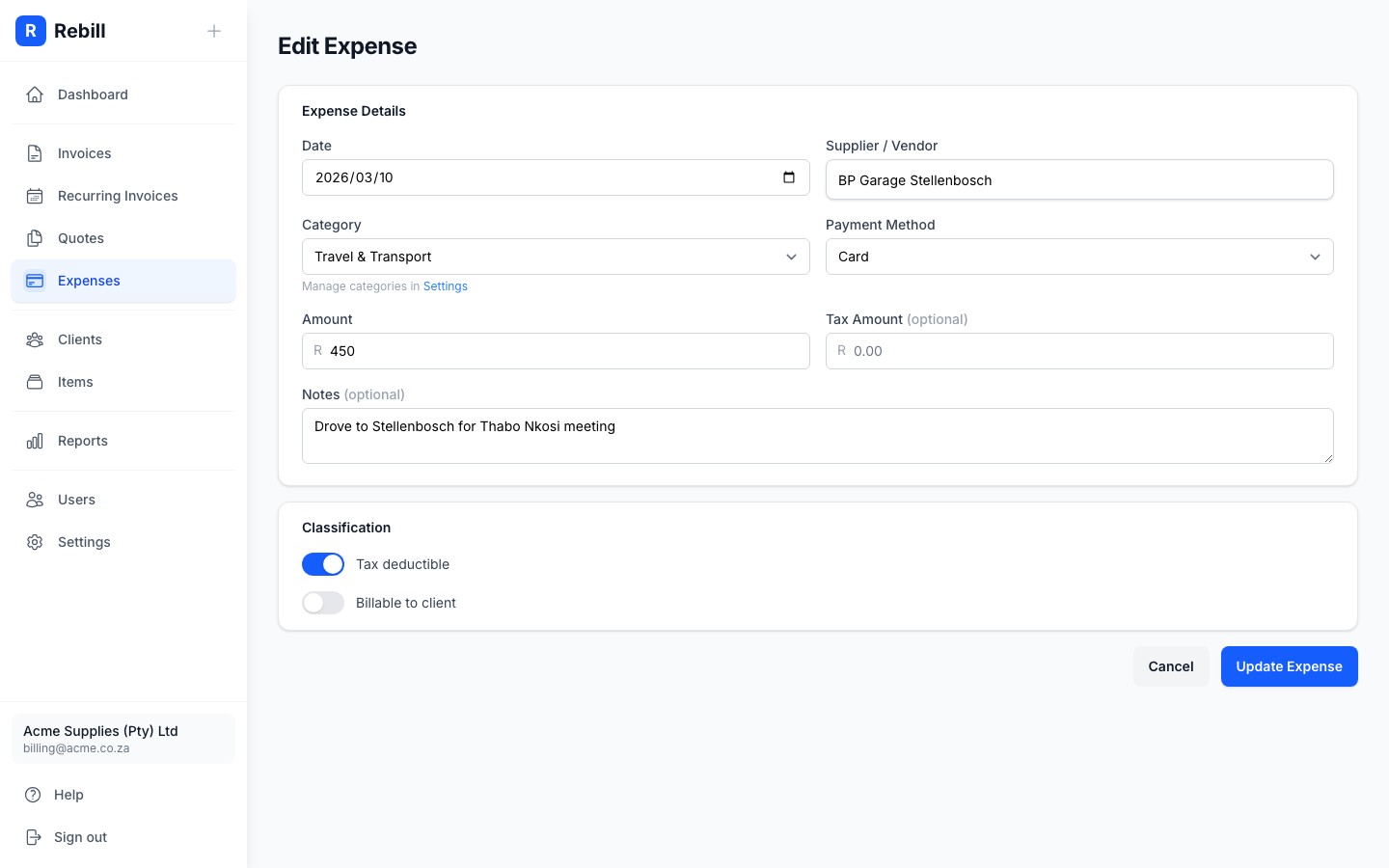
Editing an expense
Click the supplier name in the expense list to open the expense and edit any of its details. To delete an expense, click the trash icon on the right side of the row.